GuessIt Version 1.9.4 August 2026
IMPORTANT ! This version is compatible with the H5P API 1.28 ‘new look’
Introduction
GuessIt is not an adaptation of a standard H5P content, it’s an entirely new content. It is an adaptation of a language game to be played on paper or on a classroom blackboard, dating back to the 1970s. It was one of the very first games I programmed on my Commodore 64 in the mid 1980s. I also created a Moodle plugin version of GuessIt which you can find here: Moodle Marketplace Guess It.
Rationale
The player has to guess a “mystery sentence”, word by word. Each word entered by the student is compared letter by letter with the word to be guessed, starting from the beginning of the word. If a guessed letter matches the original letter, upon checking the answer, that letter is underlined with the equal sign (=). If the original letter’s rank in the alphabet is situated before the letter typed by the student, the student’s letter is marked with the < sign (look before). And in the opposite case, the student’s letter is marked with the > (look after) sign.
The difficulty of the exercise resides in a number of factors. It is easier to guess a sentence which has been recently memorised in class or a well-known saying or proverb or a verse from the lyrics of a well-known song.
Creating a GuessIt content
When the GuessIt H5P library has been installed on your site, select it from the drop-down list of available H5P contents. The screenshots below are taken from the GuessIt Template-1 content which you’ll find in the menu on the right.
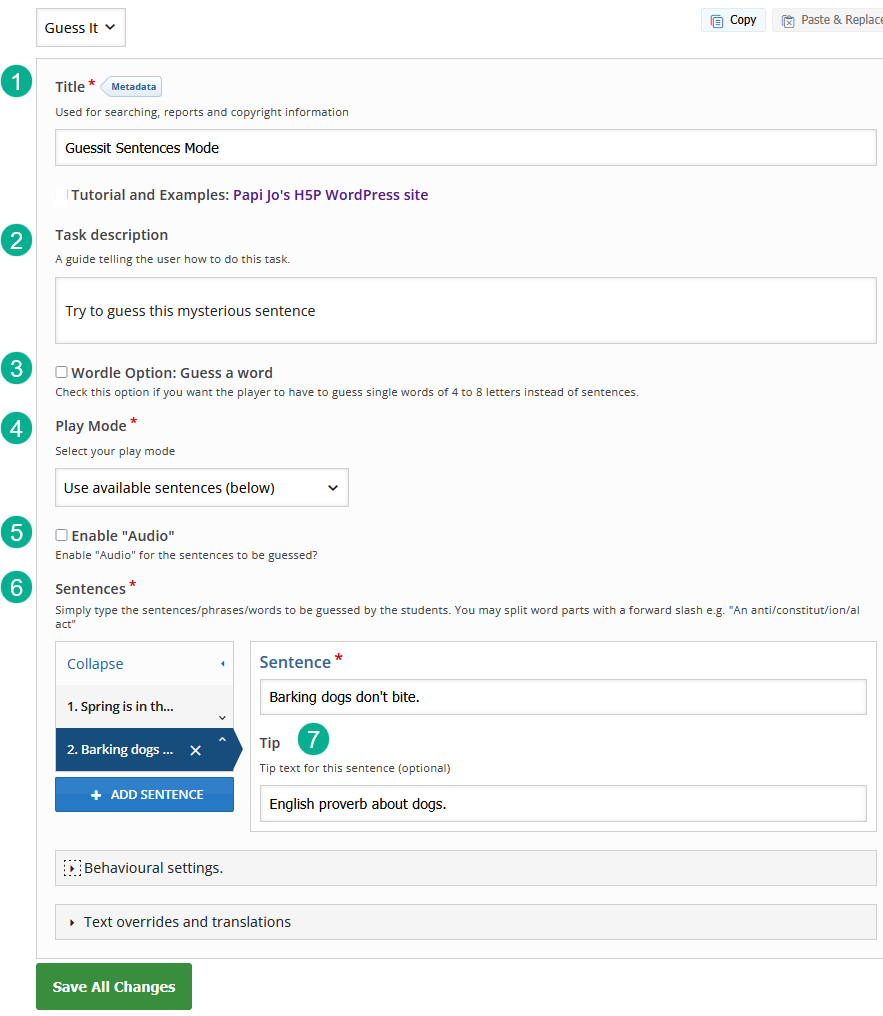
The various input fields are self-explanatory. The fields marked with an asterisk * are compulsory. Field #3 Wordle option will be explained below. Field #4 Play mode has 2 options: use available sentences OR Allow player to enter their own sentences and will be explained below. In field #6 you can enter as many sentences as you like. If you want to enter a large number of sentences in bulk, you should use the h5p-cli-creator available on my GitHub. You do need some knowledge of Node.js to use it.
Field #7 Tip will be available to the student like any other H5P Tip button. Use it to provide a general or targeted kind of help; like all such Tips, it should provide useful help to the player without revealing too much!
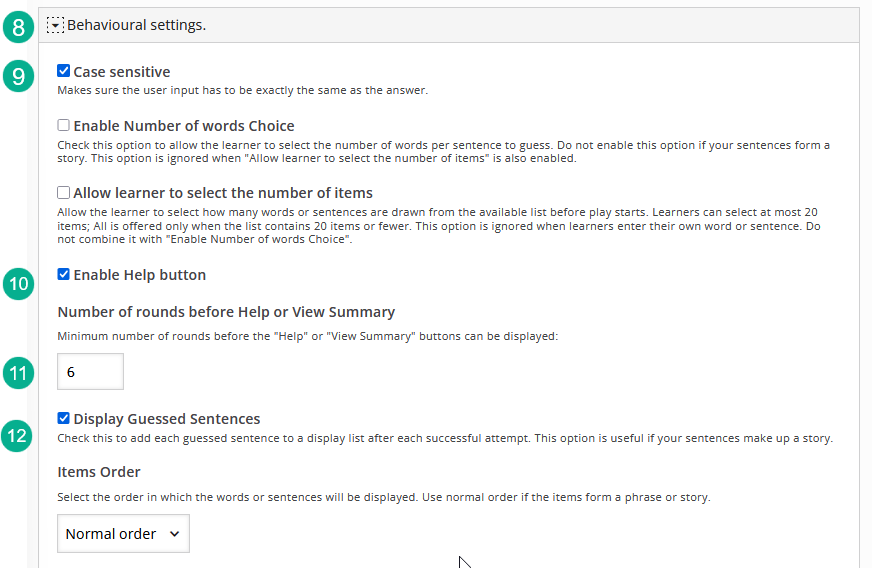
The Behavioural settings are self-explanatory. The option allowing the player to select the number of items (sentences) to be guessed is useful if your GuessIt content has a larger number of sentences.
Option #10 Enable Help button is useful to prevent the player from being frustrated at not guessing the sentences after so many unsuccessful tries. You set the number of attempts before Help can be available in field #12. Option #10 behaves as a switch between 2 help modes:
- Enable Help button ON -> after n attempts, words that have not yet been guessed will be “given”, one at a time.
- Enable Help button OFF -> This makes visible the Enable “View Summary” button which can be set to ON to allow the player to open the summary without guessing the current sentence. Please note that if the Enable “View Summary” button is OFF then the player will not be able to get out of the game until they have guessed the whole sentence. This may lead to frustration.
Option Items Order can be set to Normal or Random.
Example scenario for ‘Guess a Sentence’ mode
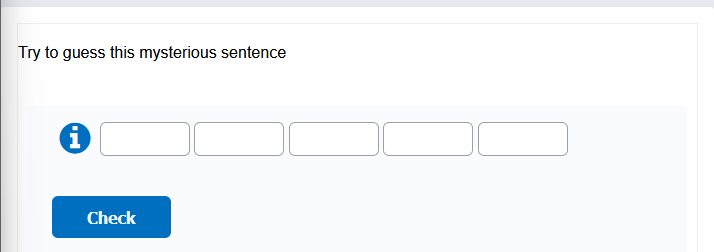
If a tip is available, the player can click the Tip button to view it. The text of the Tip here is “A seasonal English saying”.
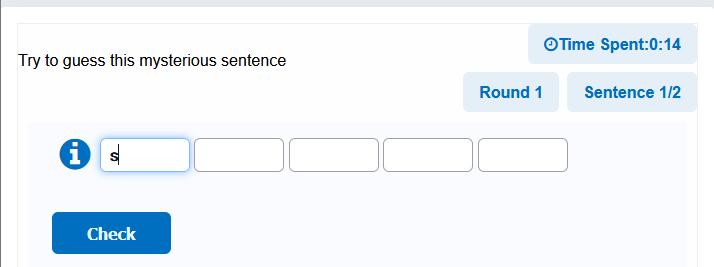
Immediately after the player starts typing a word in the first input field, the current flow info blocks are displayed at the top right of the window.
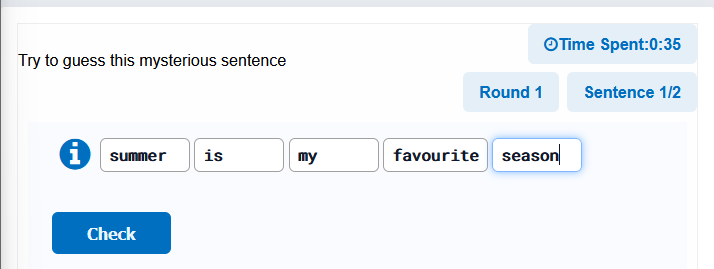
Words are entered one by one in the provided gaps and the player navigates to the next gap by pressing either the Tab or the Space keys. If needed, the size of the gaps will “grow” to accommodate longer words, as is the case with the word “favourite” entered in the 4th gap.
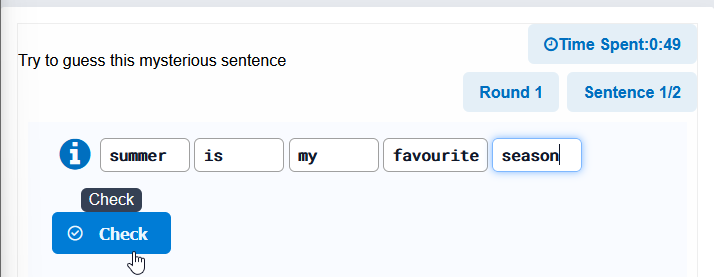
When the player enters the last word and presses either the Tab or the Space key, the focus goes to the Check button.
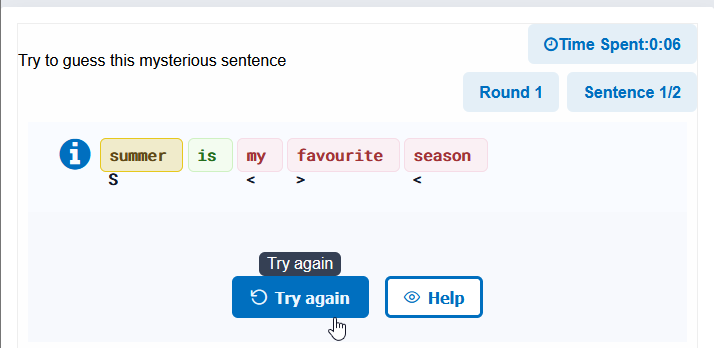
When Check is pressed, specific feedback is provided in the “feedback” zone below the sentence as follows: Gap 1 shows that the first word of the sentence should start with a capital letter. The yellow background tells that the word entered is partially correct. Gap 2 shows that the 2nd word has been correctly guessed, and the word is displayed on a green background. The words in gaps 3 to 5 are on a red (incorrect) background. For each partially or incorrect word in the answer, marks are displayed just under the first letter, showing whether the letter to be found is located after (> sign) or before (the < sign) the letter entered, in the alphabet. The letter “S” is simply given.
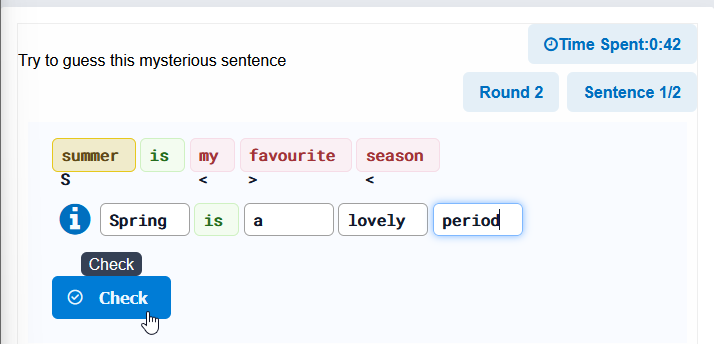
The player has entered “Spring is a lovely period”, taking care to enter words whose first letter matches the < or > marks previously given in the specific feedback. They don’t have to type again the correctly guessed words, on a green background. The cursor automatically ‘jumps over’ those words to the next blank gap.
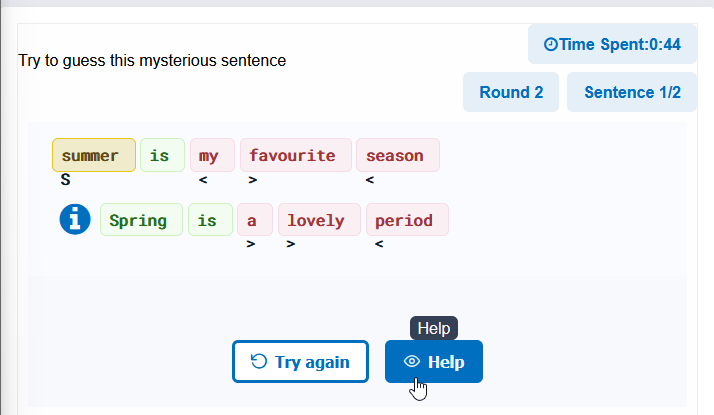
Specific feedback is provided again. Note that specific feedback displayed in the “feedback zone” is added for each successive try and numbered. This is especially helpful for incorrect words. In the example above, the player now knows that the word in Gap 3 begins with a letter after “a” and before “m” in the alphabet; the word in Gap 4 begins with a letter after “l” and the word in Gap 5 begins with a letter before “p”. Before attempting a new try at guessing the incorrect words, the player decides to get some help by clicking on the Help button.
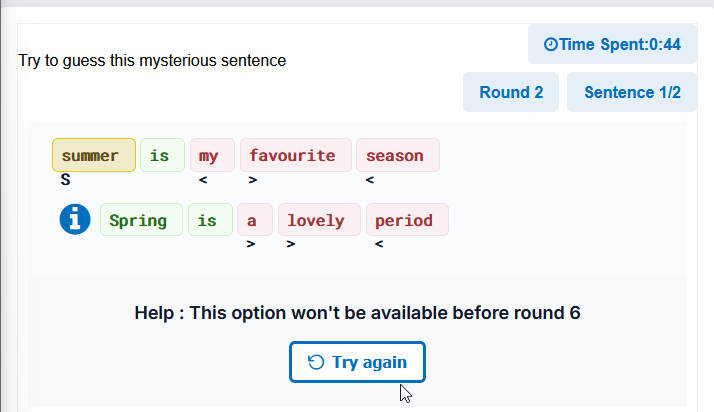
Since in the question Options we set Option Number of rounds before Help or View Summary to 6, a relevant message is displayed.
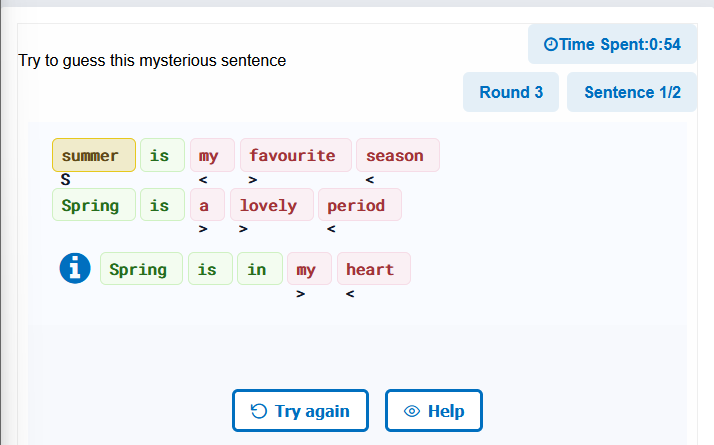
And the scenario continues, with each new try adding its own specific feedback to the list.
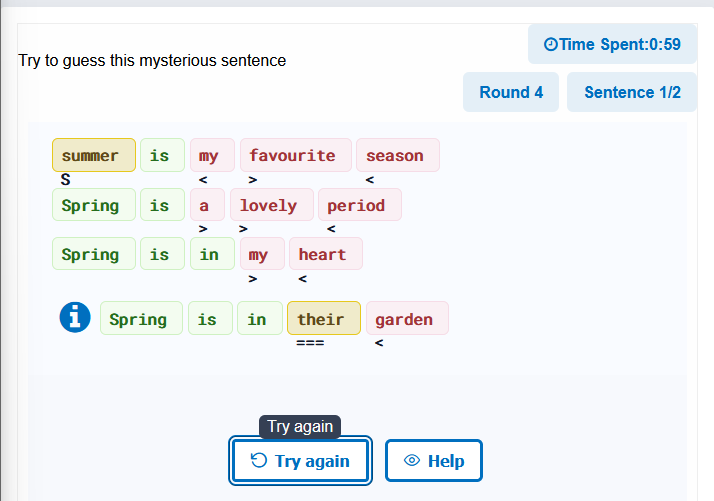
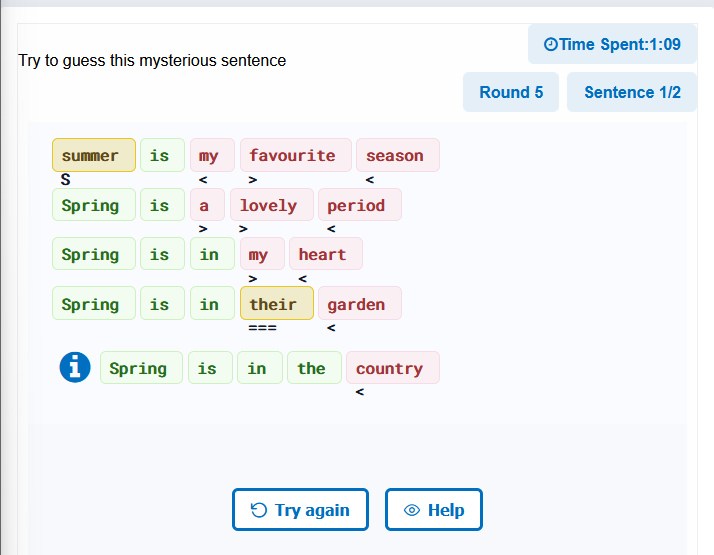
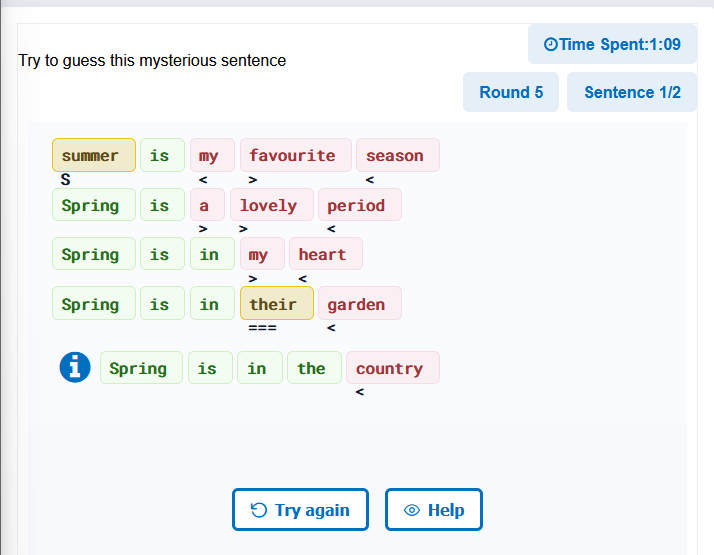
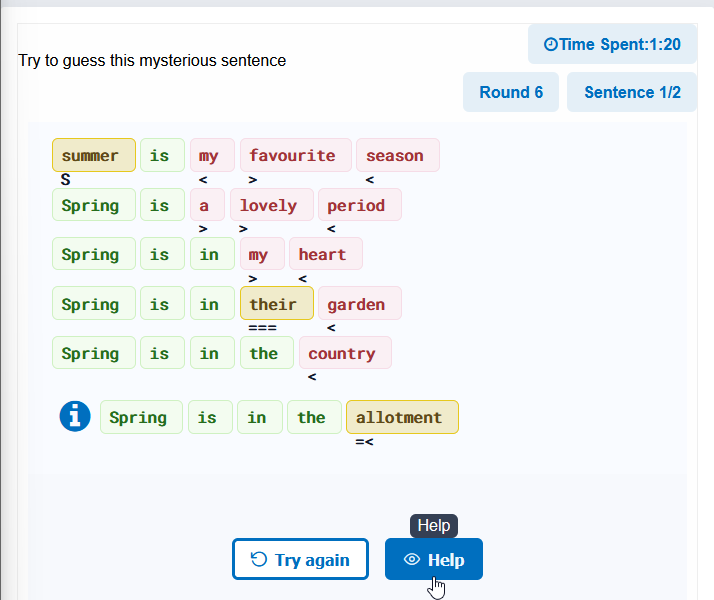
The student clicks on Get help, after the required set number of attempts has been reached…
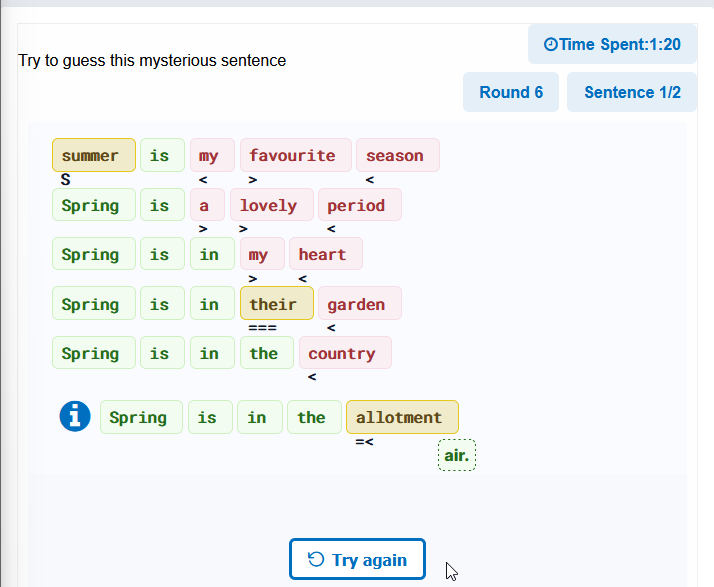
The last missing word is given. Note that the final full stop is also given.
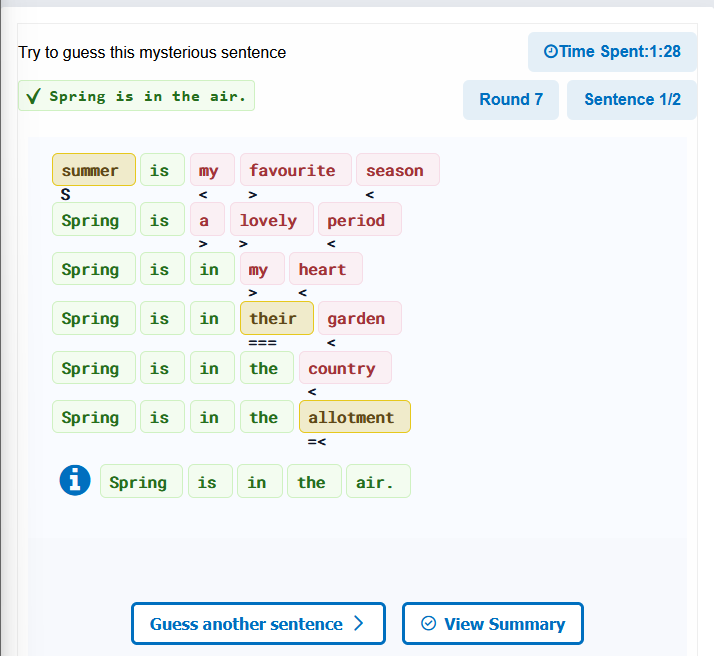
Finished! The whole sentence has been guessed. In the Edit form we selected option Display Guessed Sentences, so the completed sentence is displayed at the top left, with a “correct” icon and green background.
If we entered several sentences in the Edit form, after each guessed sentence the player can choose to Guess another sentence or quit the game here and View summary.
Using the Wordle mode
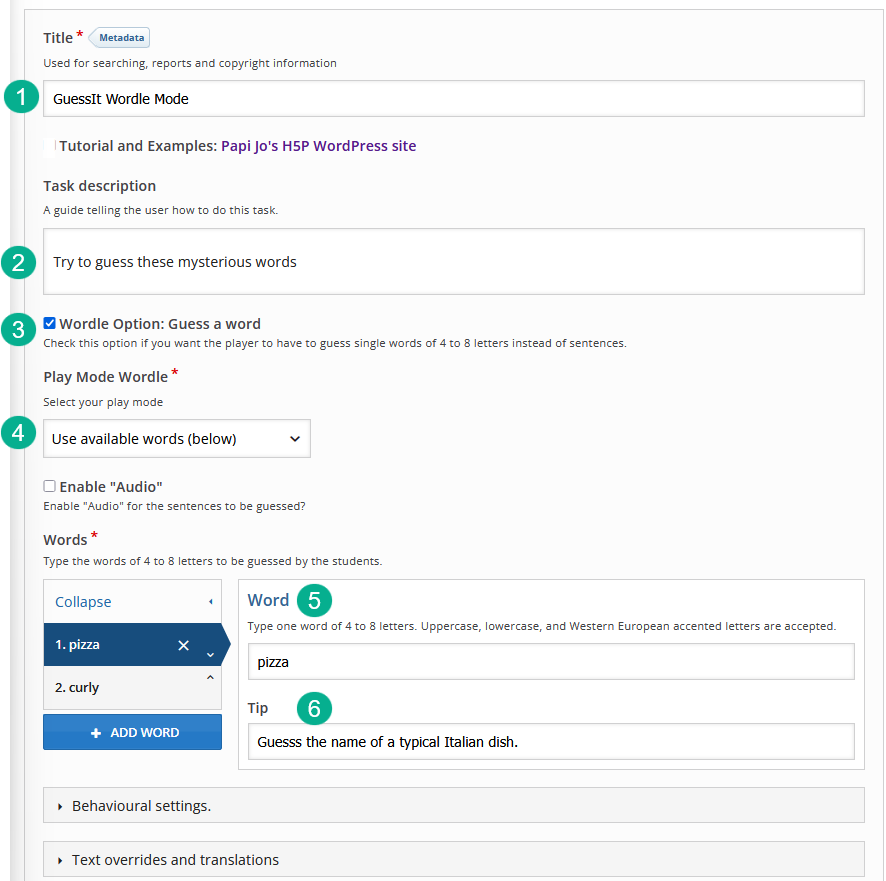
Again the various options are self-explained. In field #5 the instructions say “Type one word of 4 to 8 letters”. If you enter a shorter word of less than 4 letters, when clicking the Save Changes button, a warning message will be displayed. And it is not possible to enter more than 8 letters. A reasonable length for the Wordle game is 5 letters. See below for accepted foreign diacritics, etc.
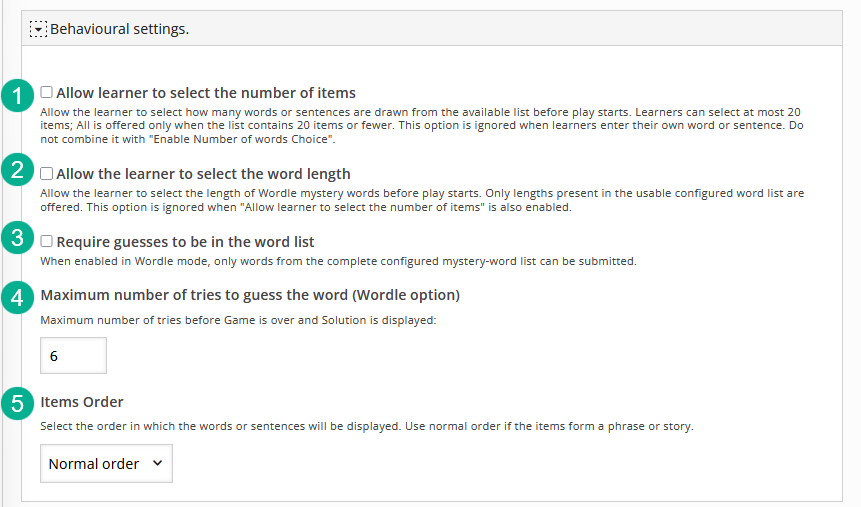
Please note that it is not possible to combine options #1 and #2; you can use one or the other. These options are useful if you enter a list of words with variable lengths or if you have fairly long lists. As with the default Sentences mode, if you need to enter a large number of words in bulk, you should use the h5p-cli-creator available on my GitHub.
Option #3 Require guesses to be in the word list. When enabled, this option will refuse words not in the list. Preferably use this on long lists of words, such as the full list of the New York Times Wordle game list. It prevents the player from typing “non-sensical” sequences of letters. Rejected words do not count in the number of Rounds.
Example scenario for ‘Wordle’ mode
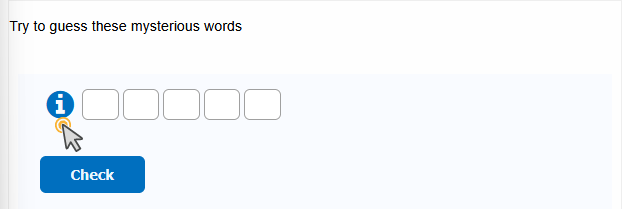
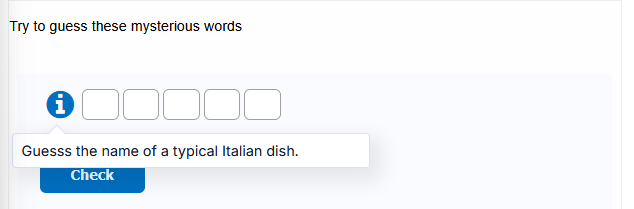
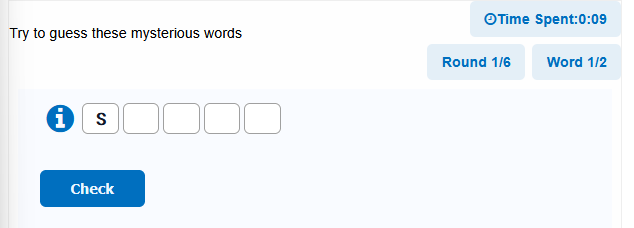
As with the Sentences mode, immediately when the player enters the first letter in the first gap, the flow information block is displayed at the top right.
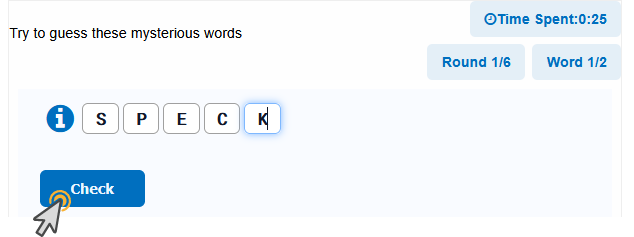
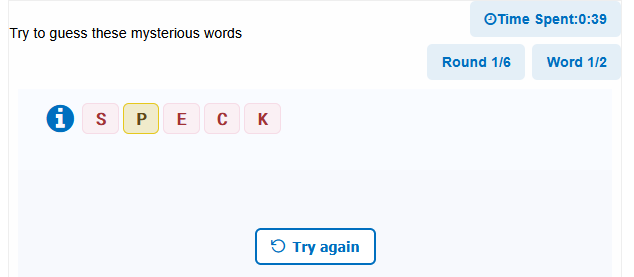
Feedback is provided using the same colouring scheme as for the default Sentences mode. Green for a correctly placed letter; yellow for a letter which is in the word but not correctly placed and red for a letter not in the word.
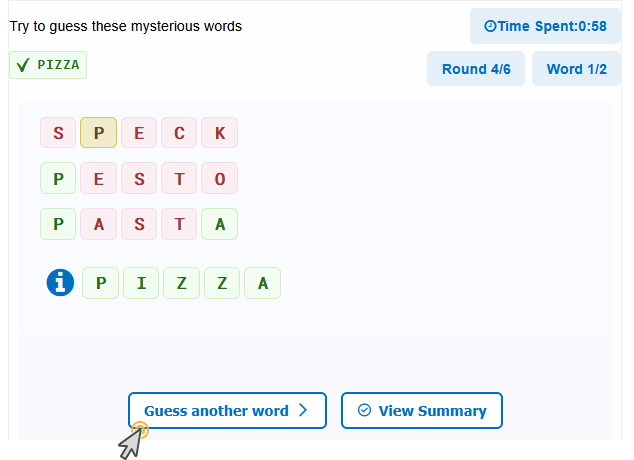
When the word has been completely guesses, it is displayed at the top left, with the correct icon and green background. Now the player can continue with the next word.
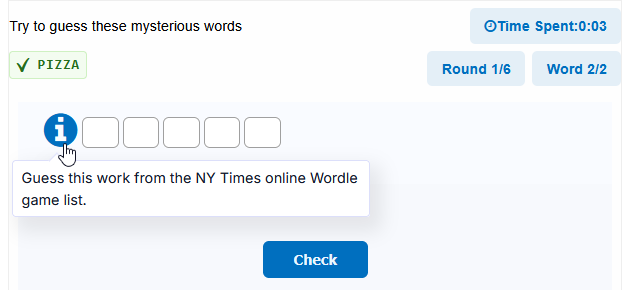
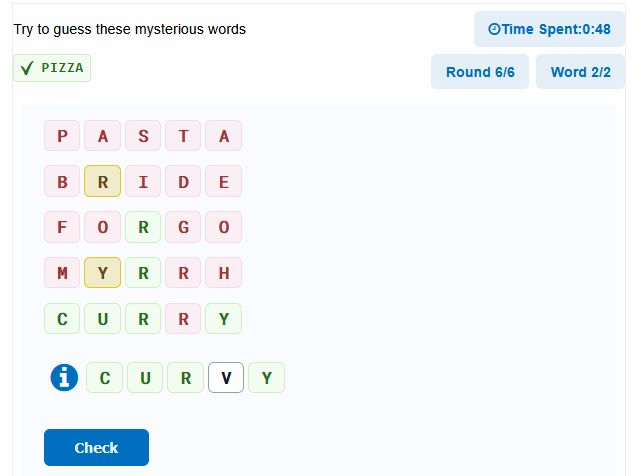
Mystery word still not guessed after the fixed limit of 6 rounds…
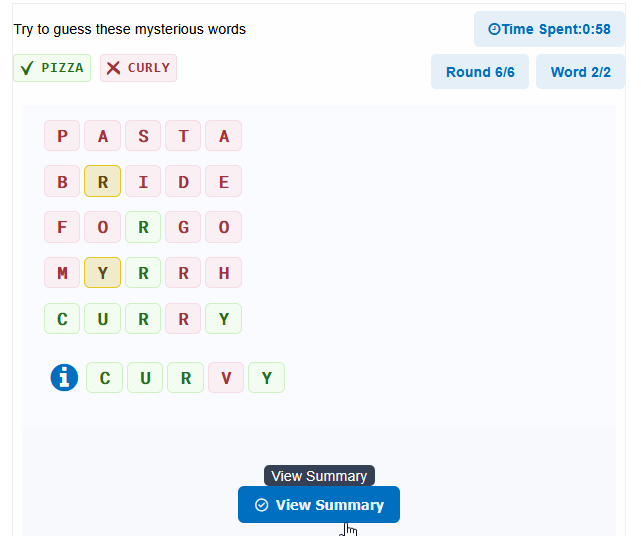
The word to be guessed was “curly” and it is displayed at the top left corner, with the incorrect icon and red background. Player clicks the View Summary button.
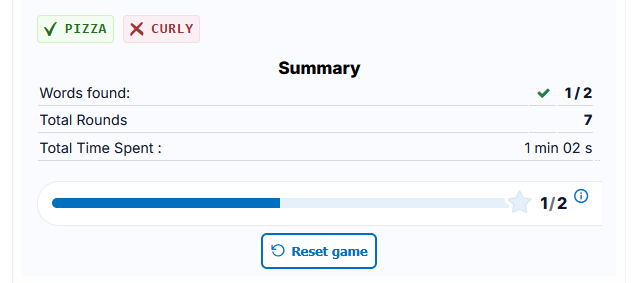
Game over, because there were only 2 words in the list: one has been guessed and one not, so the final score is 1/2.
Last edited: